Samsung Galaxy S Ii S2 I9100 16gb Unlocked Gsm Wi-fi Wifi Gps 8mp Android Phone Logo
Anonymous Posted on Aug 29, 2013

Camera failed - Samsung Galaxy S Ii S2 I9100 16gb Unlocked Gsm Wi-fi Wifi Gps 8mp Android Phone

1 Answer

Vipul

Level 1:

An expert who has achieved level 1.

New Friend:

An expert that has 1 follower.

Corporal:

An expert that hasĀ over 10 points.

  • Contributor 4 Answers
  • Posted on Aug 30, 2013
Vipul
Contributor
Level 1:

An expert who has achieved level 1.

New Friend:

An expert that has 1 follower.

Corporal:

An expert that hasĀ over 10 points.

Joined: Aug 30, 2013
Answers
4
Questions
0
Helped
479
Points
24

First, go into Settings, and choose Applications.
camera failed - how-to-fix-camera-failed-1-180x300.png
From the Applications menu, choose Running Services.

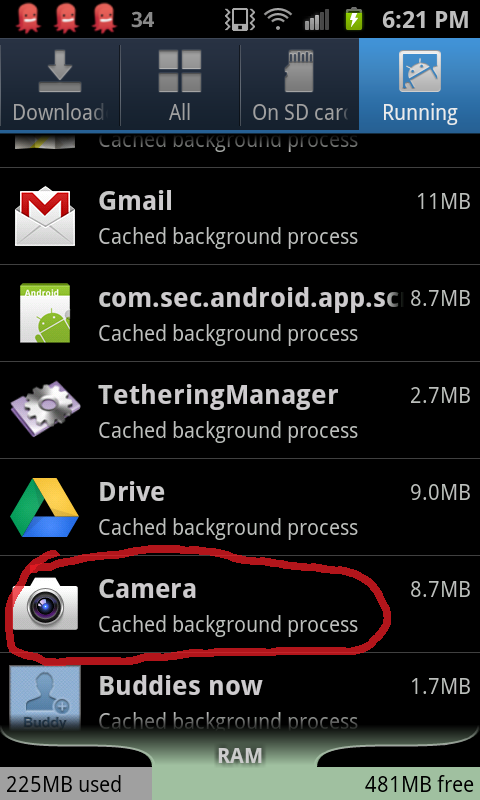
When shown the list of Running services, press the Menu key to show the option Show cached processes. Select Show cached processes.

Scrolling through the list of cached processes look for the Camera app and select it.
how-to-fix-camera-failed-4-180x300.png
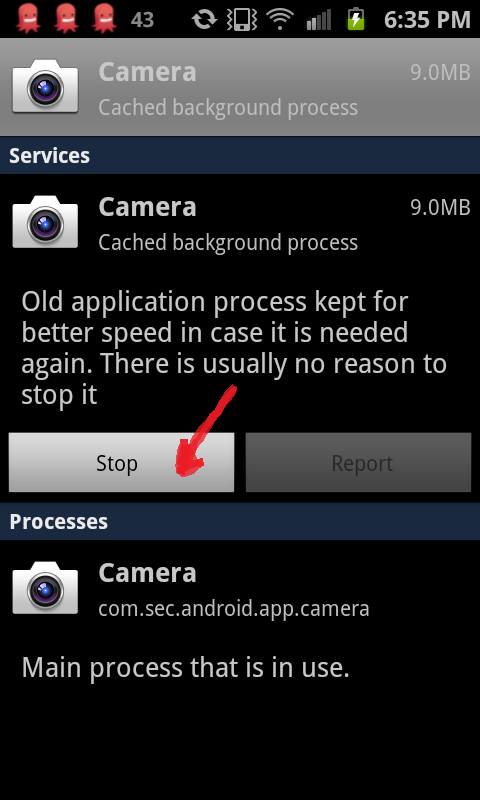
When you select the Camera process you will have the option to Stop it. Choosing Stop should successfully release the camera hardware.
how-to-fix-camera-failed-5-180x300.png
After stopping the cached camera process, return to your home screen and try relaunching the camera app or whatever other app you were trying to run when you ran into the "Camera Failed" error message. It should now successfully start with access to the camera.

Add Your Answer

×

Uploading: 0%

my-video-file.mp4

Complete. Click "Add" to insert your video. Add

×

Loading...
Loading...

113 views

Ask a Question

Usually answered in minutes!

Top Samsung Cameras Experts

Cindy Wells

Level 3 Expert

6751 Answers

Kirk Augustin
Kirk Augustin

Level 3 Expert

2020 Answers

Pieter Vleeshouwers
Pieter Vleeshouwers

Level 3 Expert

2032 Answers

Are you a Samsung Camera Expert? Answer questions, earn points and help others

Answer questions

Manuals & User Guides

Loading...